The assistant loads only when you choose to use it.
Try asking things like:
Where do I find the first 90-day checklist?
What should I say to a parent about camera expectations?
How do I use EduProtocols for my next lesson?
What's the process for submitting my weekly hours?
Where do I track student behavior using Toddle?
How do I prepare for Meet & Greets with new students?
Where do I find the current attendance guidance?
Can I get an example of a classroom agreement aligned with MTSS?
Support
Tech Support
Follow the seven-step path in order, then share what you tried when you ask for support.
Tech Support (🛠️ Troubleshooting Path)
Tech Support 🛠️
Tech hiccups happen to the best of us — even mid-class. Before you call in reinforcements, run through this very quick seven-step path. Most bugs get squashed by step three!
Tech support steps
1
Give it a refresh 🔄
Clever or Toddle can time out while still looking signed in. Refresh once, then check whether your last change actually saved.
2
Is it just this browser?
Pop the same page open in your other installed browser, or a private/incognito window. Works there? It’s a browser thing — keep going below.
3
Clear the site’s data (not your whole browser!)
Clear out only the affected site’s stored data first — that way you keep your sign-ins and preferences for everything else.
Chrome → Settings → Privacy and security → Third-party cookies → See all site data and permissions. Search for the affected site, then delete only that site’s data.
Safari → Settings → Privacy → Manage Website Data. Search for the affected site, select it, then choose Remove.
Last resort: clear all-site data only if the steps above don’t cut it. Heads up — this signs you out of everything and clears your other saved preferences too.
4
Update your browser & device
Install any pending browser or operating-system updates, then reopen the affected app — updates fix more than you’d think!
5
Double-check your account
Make sure you’re logged into your assigned BMS account (for teachers the email ends @brilliantmicroschool.org, for students should end in @bms.family) and the right profile before you go anywhere near a password reset.
6
The classic reboot
Close the browser completely and reopen it. Still stuck? Restart the device — yes, really, it works sometimes.
7
Still stuck? Let’s get you help
No shame in it — some things just need a tech expert. Submit a ticket straight from your Close account (walkthrough right below), and include the device, browser, exact error, and what you’ve already tried.
Submitting a Ticket in Close — Made Easy 🎟️
Worked through all seven steps and still stuck? Here’s how to get it into the right hands in under two minutes:
Step 1 — Log in. Log in to your Close CRM account.
Step 2 — Find yourself. Pop your own name into the search bar at the top to pull up your lead profile.
Step 3 — Open Activity. On your profile, click the Activity dropdown near the top right (next to Meeting, Note, Email, SMS, and Call).
Step 4 — Find the ticket option. Type “tech” to filter the list, then pick TECH01. Support – Submit a ticket [NEW].
Step 5 — Tell us everything. A short form pops up — fill in your name, a ticket title, a detailed description of the issue, the affected system/tool (Clever, Toddle, Brilow, Student Email, etc.), and the affected page or URL.
Step 6 — Send it off. Hit submit! Your ticket is automatically logged and lands straight in the tech team’s queue.
What Makes a Ticket a Teacher’s Best Friend 💌
A little detail up front saves everyone a lot of back-and-forth. Here’s your checklist:
App / tool — The app or tool involved (Clever, Toddle, Brilow, IXL, MAP Growth, etc.).
Who’s affected — Student email plus teacher name or class ID.
Exact error — The exact error message, or what happened instead of what you expected.
Screenshot — At least one screenshot of the error or the missing piece, when it’s safe to share.
If you would like to begin exploring additional tools, including IXL (our primary adaptive learning platform), check out Our Learning Apps.
Get Certified · Mastery Check 2
Getting Started
Set up your teaching space, school email, Slack rhythm, and core Zoom skills before completing Mastery Check 2.
Set up your virtual environment
Quiet Space: Set up a quiet workspace with a pleasant background, good lighting, and minimal noise to promote focus and engagement.
Powerful Computer: Equip yourself with a computer or laptop with sufficient processing power (at least an Intel Core i5 or equivalent), 8GB of RAM, and 256GB of storage for running necessary applications and participating in online learning activities. You should not use a Chromebook or tablet. Instead, you need to use a high-performance laptop or desktop.
Reliable High-Speed Internet: Ensure a stable, high-speed internet connection (minimum 25 Mbps download and 3 Mbps upload) for smooth video streaming and uninterrupted communication during class sessions.
Quality Camera: Use a high-resolution, 1080p (or better) webcam (external ones often provide better quality) for clear video, effective communication, and engagement during virtual classes.
Digital Writing Pad: Use a writing pad or tablet with a stylus (recommendation here) for creating and sharing digital notes, diagrams, or illustrations in real-time, facilitating students’ understanding of complex concepts.
Set up Gmail
Use your assigned @brilliantmicroschool.org email for all school-related communications.
Add one of the suggested email signatures to your Gmail account.
All sessions run on Zoom. Required minimum: watch videos 1–3. These cover sharing sound, using multiple screens, and pausing a screen share. Optional practice: videos 4 and 5 if you want a fundamentals refresher.
Zoom Clips supports quick video messages. It is not part of the required Zoom minimum above. Optional Zoom Clips: videos 6–8. Log in with your school Zoom account and open the Clips tab when you need this tool.
House Teacher Support team: Use the seven-step Tech Troubleshooting path first. If the problem remains, use your House Teacher Support channel and include what you tried.
Mastery Check 2
For Microschool Teachers: Create a brief 1–3 minute video introduction to your virtual classroom using Loom (about 15 minutes). Include a glimpse of your well-lit, quiet workspace and a short introduction for your Toddle classroom or families.
Be creative, add humor if you like, and be yourself. Share the video link in #bms-teacher_certification. This is a Mastery Check — only people you share with on Slack will see it.
After submitting: The certification team will respond in Slack.
MTSS, honor code, meet & greets, student information systems, parent communication, attendance, and payroll.
Mentioning here is Mastery Check three please complete both sections
Admin & Student Support
Use this section for the operational work around teaching. Start with the task index, read only the chapter you need, and use each stopping point to avoid scanning unrelated material.
Start here
Welcoming students and your first 90 days
Make a copy of the First 90-day Checklist and share it with your Slack Welcome Group. Use it to focus on the minimum requirements at each stage rather than trying to master every app and process on day one.
Google document
First 90-day checklist
Make a copy, share it with your Slack Welcome Group, and use it throughout your first 90 days.
New teachers should complete the checklist by the end of Month 3. Current teachers who have not completed it should do so now.
Meet & Greets
Participate in the casual, 30-minute Zoom meeting coordinated by Admissions. Introduce yourself, share your teaching style, and spend most of the conversation learning about the student's background, preferences, strengths, and challenges. If the student is present, focus on rapport and comfort.
Admissions and Parent Support guide the family through the steps below. Teachers should know where the family is in the process without taking ownership of enrollment work.
Complete the registration form and confirm enrollment.
Join the teacher Meet & Greet.
Attend the Parent Welcome Meeting.
Complete a Student Welcome Session when the program requires one.
Arrange records transfer and receive the student's school credentials and platform access.
What the teacher owns
Review the registration information and participate in the Meet & Greet.
Prepare the class and a low-pressure way for the student to meet peers.
Check Clever, Toddle, and required learning apps at least 24 hours before the start date.
Welcome the student personally and observe how they settle in during the first weeks.
Check the current academic calendar before scheduling IXL and MAP Growth assessments.
What Parent Support and Admissions own
Enrollment confirmation, registration, records, and the official start date.
Family and student welcome meetings.
Billing, scheduling, and unresolved account or platform access.
Escalating missing information to the correct owner.
If something is missing
Contact Parent Support rather than asking the family to repeat enrollment work. Do not start the student without the confirmed start date and access needed for class.
Support the first month
1
Week 1 — arrive
Help the student log in, find the class rhythm, and meet their classmates.
2
Week 2 — explore
Check comfort with the core tools, camera expectations, and ways to participate.
3
Week 3 — connect
Introduce House and wider community opportunities without forcing participation.
4
Week 4 — settle
Review routines, access, early learning evidence, and any support that needs routing.
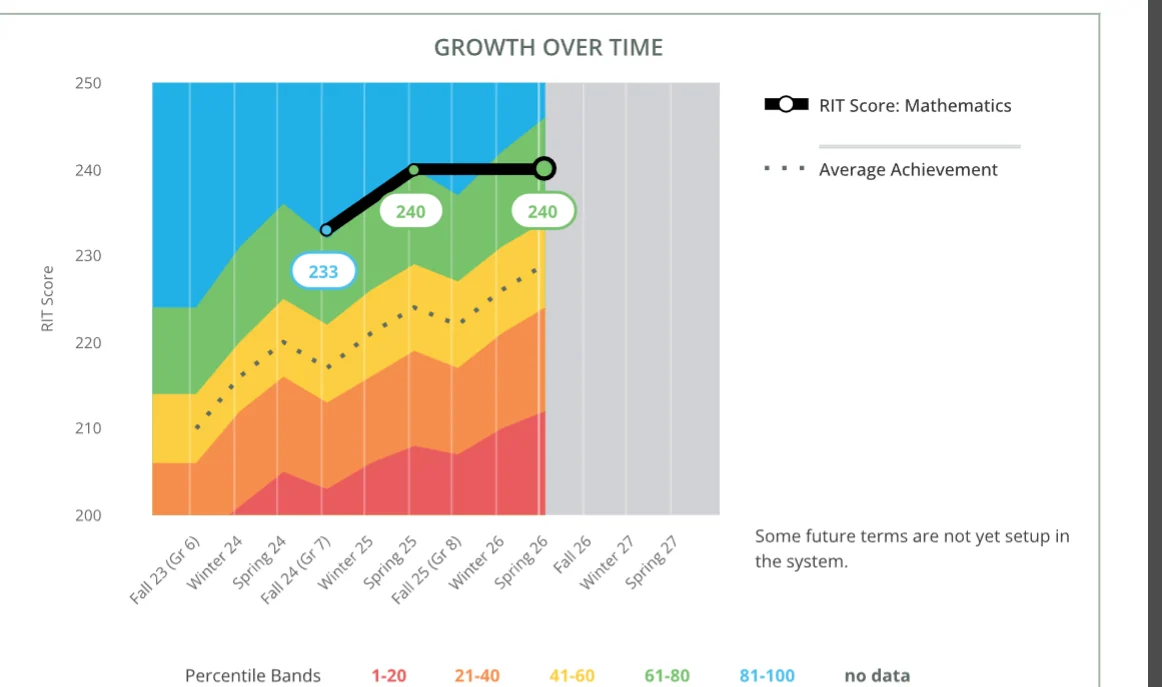
Please note the MAP Assessment windows for the 2026–2027 school year: Fall Window: September 8 – September 25, 2026 Spring Window: April 26 – May 7, 2027
It is good to plan the assessment during their first month but avoid doing so in the first week. A student's first week should have one goal only: getting them comfortable and excited about our school. Also, avoid assessments in August, the first assessment in September works well.
Let's use the words 'assessment' or 'diagnostic' instead of 'testing'. This reduces student anxiety. We don't use these assessments for any sort of grading, but rather they are used to reward growth and most importantly, to evaluate where you need to focus your differentiation to fill learning gaps.
If a student experiences testing anxiety, they have the option to opt out of the MAP assessments. However, it's important for parents to know that MAP is a nationally-normed assessment that some states mandate. We encourage parents to check their state requirements via Toddle and ensure they're in compliance should their student choose to opt-out.
Stopping point
Stop when your 90-day checklist is shared and you know the new-student first-week steps.
Work through this chapter in three parts: learn the behavior framework, build your classroom agreement, then use the attendance and escalation guidance when a concern appears.
1. Learn the behavior framework
Start with MTSS. Use the Honor Code, Camera Policy, and Tier 1 guide to understand the expectations and supports that sit around it.
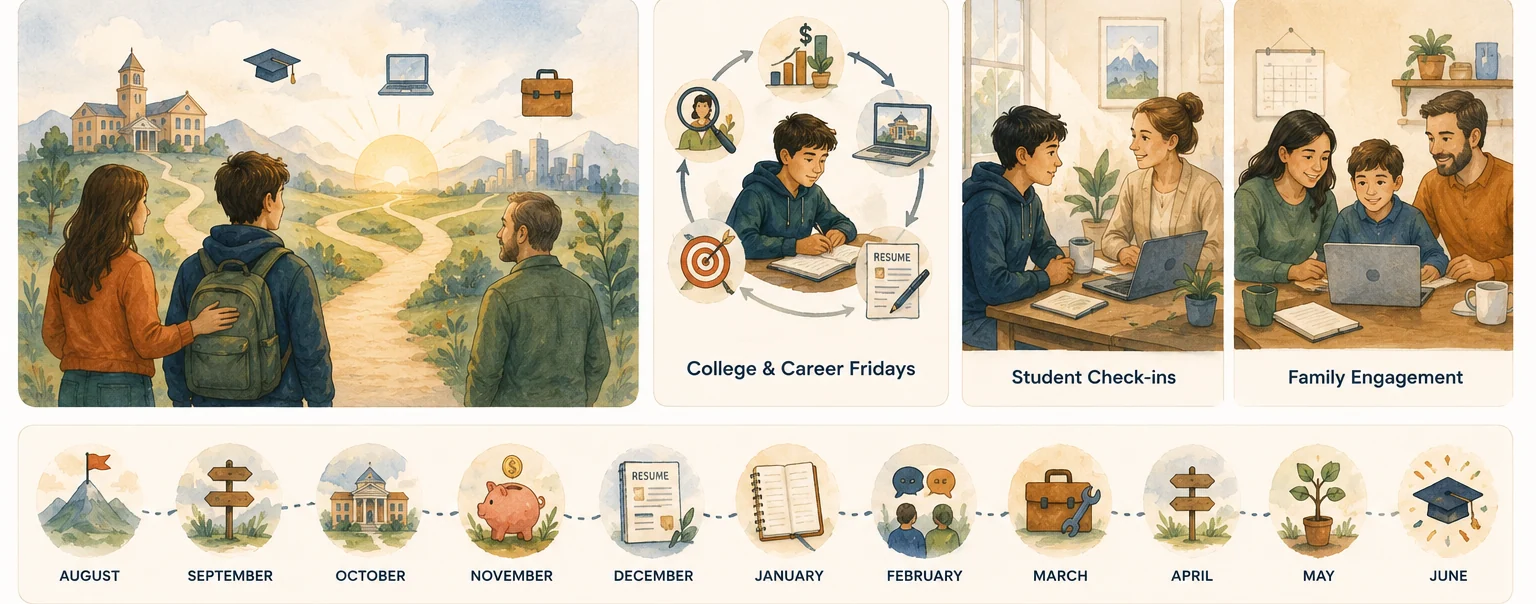
The support journey is a shared path. Enlarge the illustration to see how universal, individualized, and intensive support fit together.
Create a classroom agreement from the MTSS and Honor Code. Set clear expectations for camera use, visible faces, appropriate dress, and neutral backgrounds while responding to concerns calmly and without blame.
Normally, complete the High-Stakes Typeform first, then notify the Teacher Support channel. If you need immediate assistance, post in the Teacher Support channel first, mark it high-stakes, then complete the Typeform while support responds. Follow the MTSS steps in the issued response plan.
If anyone is in immediate danger: contact local emergency services now. For other urgent concerns, use the issued response plan.
Google document · Sign in may be required
BMS High-Stakes Situation Response Plan
The written response and escalation policy for urgent student-safety concerns.
Select the student from the student menu. Their record will appear below.
3
Review records and schedules
Use the timetable for schedules and Google Meet Recordings for the past three months of calls. Ask Teacher Support for uploaded files such as an IEP or previous learning information.
4
Add a teacher note
Open Extra Notes, then choose Teacher Notes.
Loom video
Quick SIS refresher
Short reference for returning teachers who do not need the full walkthrough.
Send a brief weekly Toddle Announcement highlighting an event or targeted skill from the past week and previewing upcoming classroom activities. Use Toddle Messaging for direct communication with students and families about learning. Keep family conversations in School-approved channels rather than personal WhatsApp, text or SMS, Instagram, or other personal accounts. Parent Support schedules parent meetings and handles front-office cases such as billing, scheduling, and technology support.
Track daily attendance
Mark attendance in the Toddle Attendance tab each day. The Toddle LMS section later in the certification path walks through that daily workflow.
Stopping point
Stop when you know where to post weekly family updates and mark daily attendance.
Your hourly rate covers live sessions, lesson planning, daily Slack participation, and reasonable parent and student communication. Ask your House Leader for approval before doing additional time-consuming work.
Request planned time away
Schedule appointments and vacations outside teaching time where possible.
1
Ask your Assistant Principal
Get approval for the requested date.
2
Submit the request form
Include the reason, dates, and a shareable Drive link to lesson plans or materials. A future absence may use a blank working document.
3
Notify your support channel
Post in your House Teacher Support channel and tag the HR team.
Act immediately: Send a Slack direct message to your House Leader or the substitute teacher coordinator, and post in your House Teacher Support channel. If you need to call, use +1 718-303-0497 for HR or +1 917-563-2694 for Parent Support. Include the urgent situation and a link to your emergency lesson plans.
Administration handles parent communication and class coverage. An unannounced absence should never occur.
Use this one-minute questionnaire to share administrative skills you could contribute as the school grows. It is optional and is not part of teacher certification.
Teacher evaluations support reflection, recognize strong practice, and identify next steps. The framework considers classroom observations, student progress, teacher self-assessment, and relevant professional development.
BLS teacher-evaluation framework
Teacher evaluation uses the BLS framework across targeted support, data-informed instruction, student voice, classroom culture, and professional responsibilities.
Classroom observations of instruction, engagement, and classroom management.
Student progress and performance data used to identify growth and next steps.
Teacher self-assessment of strengths and development areas.
Relevant workshops, webinars, conferences, and other professional learning.
Return here before an evaluation or when preparing your self-assessment.
Community
Choose the right support route, learn where teachers collaborate, and see how Houses build belonging before Mastery Check 3.
Community
First learn where to ask for help. Then learn where teachers collaborate and how Houses build belonging. Use that community context with MTSS for Mastery Check 3.
1. Engage with the school community
Treat Slack as the school's digital corridor. Check the Teachers channel and your grade-band channels during business hours, respond promptly, and keep your tone constructive.
Required meeting schedule
Coming soon. Use the current school calendar for required meeting dates and times.
2. Get operational help
Choose the route that matches the problem instead of posting the same question everywhere.
Login or schedule problem: Parent Support and Admissions — Use your House Teacher Support channel for front-office help.
Student attendance concern: Parent Support — Use your House Teacher Support channel when the Attendance SOP calls for Parent Support follow-up.
Behavior or student-support concern: House Leader — Follow the MTSS and Toddle Well-being guidance, then involve your House Leader when additional support is needed.
Parent meeting or front-office question: Parent Support — Use your House Teacher Support channel. Parent Support schedules parent meetings; teachers do not schedule them directly.
Classroom technology question
House Teacher Support team. Use the seven-step Tech Troubleshooting path first. If the problem remains, use your House Teacher Support channel and include what you tried.
Each House has a Teacher Support channel for the front-office route owned by Parent Support and Admissions. Monitor it during the day for login, schedule, attendance, and Admissions support.
Keep routine family communication in Toddle. Use the teacher channels below for academic collaboration and community.
3. Collaborate with teachers
House channels are for communicating with your Assistant Principal and house colleagues about meetings, projects, events, and house culture. Set notifications to "all messages."
bms-atlantis
bms-bright_tree_village
bms-camelot
bms-dagobah
bms-emerald_city
bms-forbidden_forest
bms-gotham
bms-house_hogwarts
bms-ithaca
#bms-teachers is for school-wide academic discussion, curriculum questions, protocol advice, and sharing student work — not issues that Parent Support handles.
Brilliant Microschool uses Houses to give teachers and students a smaller community inside the wider school. Use the organization chart to find your current House Leader.
Each House develops its own inclusive culture through shared projects, symbols, assemblies, and social time. The current Houses are Atlantis, Hogwarts, Emerald City, Bright Tree Village, Gotham, Dagobah, Camelot, Forbidden Forest, and Ithaca.
Houses give teachers and students a smaller community inside the wider school.
The goal is steady confidence, not forced participation. Help students move from the smallest, most familiar setting toward wider community experiences at a pace that feels supportive.
Connection grows in layers. Enlarge the map to see how each step can make the next one feel safer and more familiar.
1
Start in class
Build trust and participation in the student's regular small class.
2
Join a House assembly
Use the familiar House community as the next step beyond class.
3
Try a schoolwide event
Invite the student to a shared tradition, elective, club, or celebration.
4
Attend a Thursday meetup
Use Regional Thursday meetups for optional, local connection.
5
Prepare for a field trip
Offer one of the Pre-field-trip icebreaker Zooms before an in-person trip.
Invite students without making participation feel like a test.
Notice growth in engagement, communication, confidence, and social-emotional development alongside academic progress.
Share relevant patterns with the student's family and support team.
Use electives, clubs, schoolwide traditions, and Student Government as additional ways to belong.
Protect family privacy
Regional groups are coordinated privately. Families choose whether to exchange contact details or join a local WhatsApp group after the introductory Zoom; teachers should not share family contact information themselves.
#bms-teacher_lounge is the casual virtual break room. Keep work-related student stories in the Teachers channel.
Now that you've spent some time reading and understanding the 'Designing Your First Month' section, it's time to demonstrate your mastery of the core concepts through a fun, creative, and realistic written activity. Imagine you're a new teacher at Brilliant Microschool, and you need to send an email to a parent addressing two specific topics covered in this section. The email does not need to exceed 5 sentences.
In the email, please include:
A casual, concise explanation of the MTSS policy and the importance of appropriate behavior for their child's success.
Describe how you foster a sense of community in your virtual classroom. Share an example of an activity or strategy you plan to use to promote gratitude, collaboration, and student engagement.
Once you've written the email, submit it for review via the #bms-teacher_certification channel. Good luck!
After submitting: The certification team will respond in Slack.
Learn our curriculum philosophy, UDL, EduProtocols, Brilow, performance tasks, and the 70/30 guidelines.
Complete for certification
This section teaches the BMS curriculum model, shows how Toddle and Brilow divide the work, and prepares you for Mastery Check 4. Follow chapters 1–4 in order, complete the check, then use the reference libraries only when a specific planning need appears.
1. Start with the BMS curriculum model
This chapter explains the instructional ideas that shape daily teaching at BMS. Complete it before opening the platform tutorials.
Loom video
Curriculum philosophy overview
The required introduction to the BMS curriculum philosophy, core components, and teaching model.
For a deeper look at the six elements of the model, continue later to Pedagogy Deep Dive.
Universal Design for Learning
Universal Design for Learning (UDL) means planning flexible ways for students to engage, learn, and show what they know. The goal is not a separate lesson for every student; it is a learning experience with useful options built in from the start.
Learning experiences and EduProtocols
EduProtocols are repeatable lesson frames. The structure stays familiar while the content changes, so students can spend more attention on thinking, collaborating, and creating.
Design authentic Performance Tasks
A Performance Task asks students to apply learning in an authentic context rather than simply recall information. BMS uses the GRASPS framework to clarify the goal, real-world role, audience, situation, product, and standards for success.
Units culminate in one or two Performance Tasks. Students receive rubric-based feedback, opportunities to self- or peer-assess, and another attempt when reassessment is appropriate.
Platform steps for assigning and assessing Performance Tasks appear later in this section and in Toddle LMS.
2. Understand Toddle and Brilow
You will use both platforms. Brilow contains learning experiences and student-facing activities. Toddle handles classroom workflows such as communication, attendance, assignments, portfolios, assessment, and reporting.
Keep the roles straight
Plan and explore learning in Brilow, then use Toddle for the operational classroom workflow. The next handbook section teaches Toddle in daily-to-reporting order.
Progress Reports
Brilow Progress Reports are used to create a formal report for each student based on their work and grades during a specific reporting period. Once the reporting cycle is open, teachers should review assigned student reports and share them with families as a PDF.
1
Open the Reporting Cycle
Path: Brilow → Progress Reports
Open the relevant reporting cycle for your class.
2
Review Each Student
Teachers should review the generated report for every assigned student.
Correct student name and details are listed.
Correct class and course assignments are shown.
Student work, submitted items, and overall grades look accurate.
Report reflects the exact active reporting period.
No obvious missing, incomplete, or incorrect grades exist.
3
Add the Teacher Comment
Write a clear, individualized comment detailing student progress.
Comment Guidelines
What the student is doing well
Overall growth and progress during the current reporting period
Key areas where the student is still developing
Actionable next steps the student should continue working on
3. Learn Brilow before MC4
Required for Microschool Teachers
Open Brilow and locate your New Teacher Unit. Use your brilliantmicroschools.org email on the teacher side, then use your bms.family email on the student side.
Teacher side: Explore the platform structure and available teaching tools.
Student side: Complete every assigned protocol and task in the New Teacher Unit.
Next, watch the primary navigation walkthrough. The short tool clips below are reference material; you do not need to watch every one before moving on.
Loom video
Brilow basic navigation
The primary walkthrough for finding and using the core Brilow tools.
Plan about 70% of classroom time around the BMS curriculum and its mastery-focused learning experiences. Reserve about 30% for teacher-designed projects, student interests, relationships, reflection, and other responsive learning.
The ratio is a planning guide, not a minute-by-minute rule. Use the current grade-band schedule and your students' needs to make the balance workable.
Optional schoolwide sessions for continued professional learning.
Open professional learning
Professional learning
BMS teachers stay curious, use feedback, and adapt their practice. The archive contains optional schoolwide sessions from November 2024 through November 2025.
IXL — November 2025
Schoolwide professional learning recording focused on classroom use of IXL.
Before beginning MC4, confirm that you have completed these required learning steps:
Watch the curriculum philosophy overview and understand how UDL, EduProtocols, and Performance Tasks fit the BMS model.
Review how Brilow and Toddle divide the work of planning, instruction, assessment, and communication.
Open the New Teacher Unit in Brilow from both the teacher and student sides, then complete its assigned protocols and tasks.
Use the required Brilow navigation walkthrough before beginning the Scavenger Hunt.
Deliverable: A completed personal copy of the Brilow Scavenger Hunt.
Make your own copy of the Scavenger Hunt, complete it before your meeting with Meleah or Orsolina, and submit the finished copy in #bms-teacher_certification. Contact Michael or Ivy on Slack if you cannot access either side of Brilow.
Google Slides
Brilow Scavenger Hunt!
Make a personal copy and complete it for Mastery Check 4.
As you access your Toddle Portal through Clever, you'll use core features such as family messaging, announcements, attendance, assessments, and report cards — all explored below.
Complete for certification
Toddle is the operational side of your classroom. Work through this section in the order teachers use it. For MC5, complete the marked practice tasks in the daily chapter. The assessment guidance remains visible afterward as a reference for live teaching.
Before You Start: Access Toddle
Open Toddle through Clever. If you need help with sign-in or first-time access, use the short transcript below.
Check messages every school day. Use announcements for the weekly family newsletter and Toddle messaging for direct communication with students and families.
Send an announcement to your Training Class using the workflow in the guide.
Attendance and teacher notes
Take attendance at the start of class. Use Present or Absent when those labels are accurate, and add a short note for Arrived Late, Left Early, Excused, Disengaged, or Not on Camera.
Google document
Attendance Policy
The required attendance workflow and BMS status definitions.
Open attendance in your Training Class, review every status, open the Training Student profile, and add a teacher note.
Toddle Well-being
The Well-being section in Toddle is used to record and monitor student wellbeing, behavior, and other concerns that may require follow-up or support.
When to Use: Teachers should use this feature when noticing concerns that go beyond routine classroom issues—such as significant behavior concerns, repeated negative patterns, emotional wellbeing issues, or incidents requiring documented follow-up.
How to Create a Note: When logging an entry, select the appropriate category, sub-category, and severity level. Provide clear, objective, and factual details of what occurred, including any immediate follow-up or action taken.
Confidentiality & Privacy: Use confidential notes strictly for sensitive information that must be restricted to authorized support staff.
Impact: Consistent documentation helps the school identify behavioral patterns early and ensures students receive targeted support.
Before you proceed with Mastery Check 5, explore the EduProtocols Playbook when you are ready to plan repeatable, student-centered lesson routines.
Keep for later
Assessment reference
This chapter supports live teaching after the core Toddle workflow.
Open assessment guidance
3. Assessment: combine evidence, feedback, and reflection
Assess Performance Tasks, growth, and social-emotional learning with rubrics and scores. Feedback may be written, visual, audio, or video. Invite students to self-assess so the process includes reflection and a meaningful teacher-student conversation.
Resource
See Toddle from the student and family perspective
Go deeper into curriculum design, classroom practice, learning apps, and school policies.
How We Teach
Our Learning Apps
Start in Clever, then find the IXL, Nearpod, or supporting-tool task you need right now.
Our Learning Apps
Start in Clever, then find the IXL, Nearpod, or supporting-tool task you need right now.
The first Clever walkthrough is the only required first-use video. Everything else is a short reference to open when that tool matches the task in front of you.
Clever: Access Your Tools 🔑
Clever is the front door to Brilow and every other BMS learning app. Sign in with your @brilliantmicroschool.org Google account, then launch the tools assigned to your class.
Loom video
Sign in to Clever
Required first use — first-use walkthrough for signing in with your BMS Google account.
Keep Favorites focused on the tools your students use most often. You can also launch an app for the whole class, or log the whole class out, in one action from your teacher’s page.
Brilow — Your Home Base 🏠
Our main platform — the one tool your class opens every day.
Brilow is our learning system and your classroom’s home base — where daily lessons, assignments, and resources live, and where student understanding becomes visible as it happens. It’s a structured, mastery-based system built to support diverse learners, so your class moves forward as students show real understanding, not just because time has passed.
What that means for you
Fewer surprises — you see gaps before they become problems.
Clearer decisions — data-informed insight on every student, right when you need it.
Steadier learning — the same consistent structure and rhythm every day, which especially helps neurodiverse learners.
Getting in
You reach Brilow in one click from the Clever portal once you’re signed in with your BMS Google account — no separate password needed.
Toddle — Track Progress & Talk with Families 📋
Use Toddle to post assignments, track attendance, and share portfolios and progress updates. Families use the companion Toddle Family app to message you directly and follow along at home.
In practice
Post assignments and class updates.
Mark attendance — if the attendance tab won’t let you mark it, switch the top-right filter to “All periods.”
Message families and answer questions through Toddle Family direct messages.
Looking ahead
We’re gradually bringing more of what lives in Toddle into Brilow. It’s a smooth, behind-the-scenes shift — nothing for you to set up — so for now, keep using Toddle exactly as you do today.
Other Tools
IXL — Assign Targeted Practice 🎯
Use IXL for student’s personalized learning paths, MAP-aligned plans, diagnostics, group practice, and skill data. Choose the walkthrough you need from the videos below.
Canva for Education gives your students a creative space to design and present their ideas — project presentations, posters, infographics, and portfolios. It’s completely free for students through BMS and accessible via Canva.com with your BMS email address.
More Tools: Find Training When Needed 🧩
Use the workshop guides below for a specific lesson need. The Learning Apps Hub is the living catalog for descriptions, login guidance, and tools beyond our main ones.
Use the six-pillar rubric and short listening clips to connect the BMS learning framework to observable classroom practice.
Choose one focus
Open the six-pillar rubric below, choose the pillar most relevant to your current teaching, and listen to one related clip. Return to the rest when you set a new practice goal.
The rubric levels are developmental checkpoints, not grades. Use the descriptor at each level to notice what is already visible in your practice and what greater consistency or independence could look like next; level 4 is not an immediate expectation.
Teacher-assessment sub-rubrics roll up into this pillar rubric, which serves as a roadmap for growth at Brilliant Microschools.
The framework shows how the six pillars support one another. Use the rubric linked above to turn the framework into observable teaching practice.
Keep for later
Use the six-pillar rubric as your spine
After reviewing Curriculum and In the Classroom, return to the pillar that best matches the practice you want to strengthen.
Open the six-pillar clip library
Each pillar includes short clips that make the rubric more concrete. The earlier Curriculum and In the Classroom sections provide the shared context for applying them.
Social-Emotional Learning
We strengthen our students' self-management through positive reinforcement.
MAP assessments are not mandatory. If a student or family chooses not to participate due to assessment anxiety or personal preference, follow the two-step protocol below.
Step 1 — Send Toddle Message
Send a direct message to the family via Toddle using the standardized template below.
Advise the family that while MAP is recommended for learning differentiation, it is optional.
Encourage parents to verify their local state, district, or superintendent requirements regarding nationally normed testing.
Step 2 — Inform School Support Team
Once the parent confirms the opt-out, notify both the assigned Assistant Principal (AP) and Parent Support.
Format: "Student [Student Name] has opted out of the [Fall/Spring 2026-2027] MAP Assessment window per parent confirmation."
Log the opt-out status in the student's record.
Family conferences
Bring useful evidence, agree on clear next steps, and check any school-year rule before the meeting.
The Protocol Playbook provides an in-depth guide to implementing EduProtocols from our curriculum.
EduProtocols are repeatable lesson frames used inside BMS learning experiences. Start with three practical examples, then return to the wider playbook when a lesson calls for it.
Start with the learning goal, then use a familiar protocol frame so students can focus on the ideas rather than a new set of directions.
1. Study the Protocol Playbook
Each protocol includes a how-to guide, differentiation strategies, best practices, and more.
Start with these three
Learn Fast & Curious, Thin Slides, and Iron Chef first. Together they provide a manageable introduction to repetition, individual synthesis, and collaborative creation.
What to look for
The repeatable student workflow for the protocol.
How the guide differentiates the activity for different learners.
The evidence or product students create at the end.
Fast & Curious
A quick, engaging way to build fluency and boost retention through repetition and gamification.
Find urgent safety guidance, routine school policies, AI expectations, and family FAQs.
Use this section for urgent safety guidance, routine policy, AI expectations, and family-facing questions.
Urgent student safety
BMS escalation route
Normally, complete the High-Stakes Typeform first, then notify the Teacher Support channel. If you need immediate assistance, post in the Teacher Support channel first, mark it high-stakes, then complete the Typeform while support responds. Follow the MTSS steps in the issued response plan.
If anyone is in immediate danger: contact local emergency services now. For other urgent concerns, use the issued BMS route below.
Google document · Sign in may be required
BMS High-Stakes Situation Response Plan
The written response and escalation policy for urgent student-safety concerns.
Do not download, save, or copy class recordings to a personal device or personal Drive. Use any School-approved short clip only for internal staff training while the Student is enrolled, and do not repost it or keep a separate copy.
Set expectations for AI use
Review the policy before setting classroom expectations or responding to suspected misuse. BMS treats AI as a learning tool when students use it responsibly.
Answer accreditation and private-schooling questions
Use the FAQ when families ask about accreditation, private schooling, or where to find official information. Escalate questions that require an individual enrollment or legal determination.
Turn the curriculum into student learning through Performance Tasks, strong math instruction, and purposeful discussion.
Start with these three
Start with these three resources: one for Performance Tasks, one for math, and one for discussion. Stop there until you need to plan one of the practices in more depth.
Google Drive file
Performance Tasks
Purpose, delivery methods, and key design considerations.
The complete reference library stays visible below so you can search or print it when a specific planning need comes up.
1. Design and facilitate Performance Tasks
Start with the Performance Task overview, then use the teaching-level and Explore Board guidance to turn curriculum structure into authentic student work.
Google Drive file
Four Levels of Teaching
Implementation guidance and demonstrations for each teaching level.
BMS math combines fluency routines with open problems, discussion, productive struggle, and mastery-based assessment. Use the resources below as a practical sequence rather than as isolated activities.
1
Spark curiosity
Reveal a real-world scenario, then invite students to wonder, predict, and estimate.
2
Solve and explore
Give students space to explore strategies and make sense of the problem.
3
Reveal and reflect
Reveal the answer, compare strategies, and reflect on the reasoning that worked.
3. Use discussion for academic and social-emotional learning
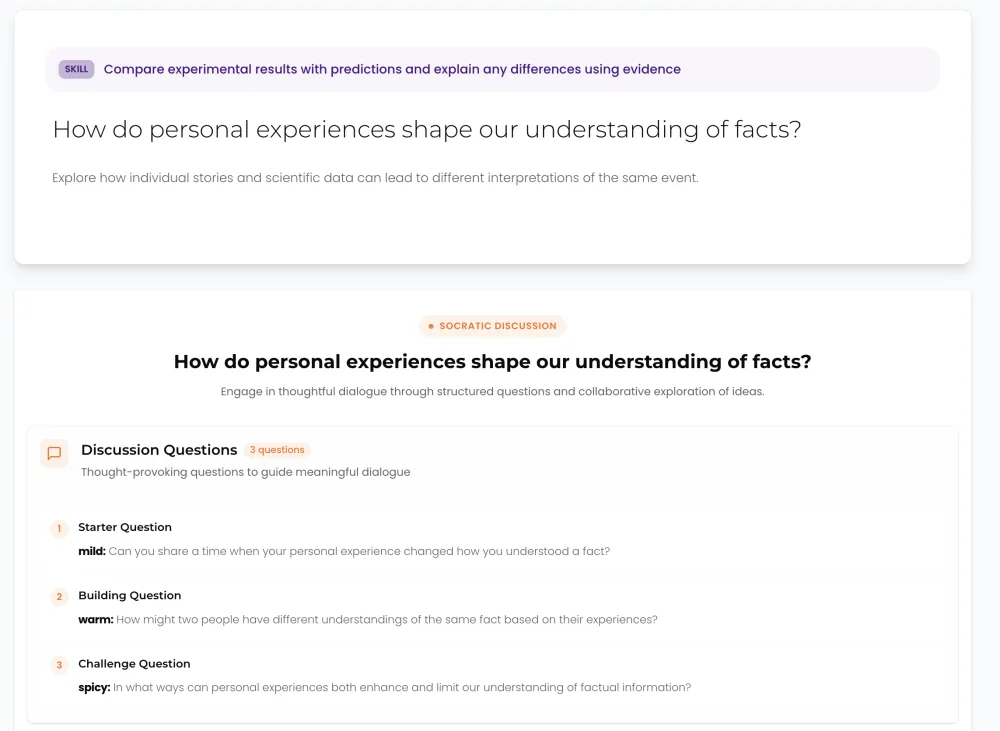
Socratic seminars help students explain their reasoning, listen to peers, and build confidence. The same discussion routines can strengthen both academic work and SEL Explore Boards.
Plan for access, design participation, facilitate instruction, and choose tools that serve the learning goal.
Start with these three
Begin with Universal Design for Learning, Amplifying Student Voice, and Effective Feedback. These three resources cover access, participation, and response to learning.
Use the complete library below when a specific classroom need appears. You do not need to read it all in sequence.
Schedules and routines
Use these when you are planning the shape of a real school day. Confirm grade-band times with your House Leader before publishing a schedule.
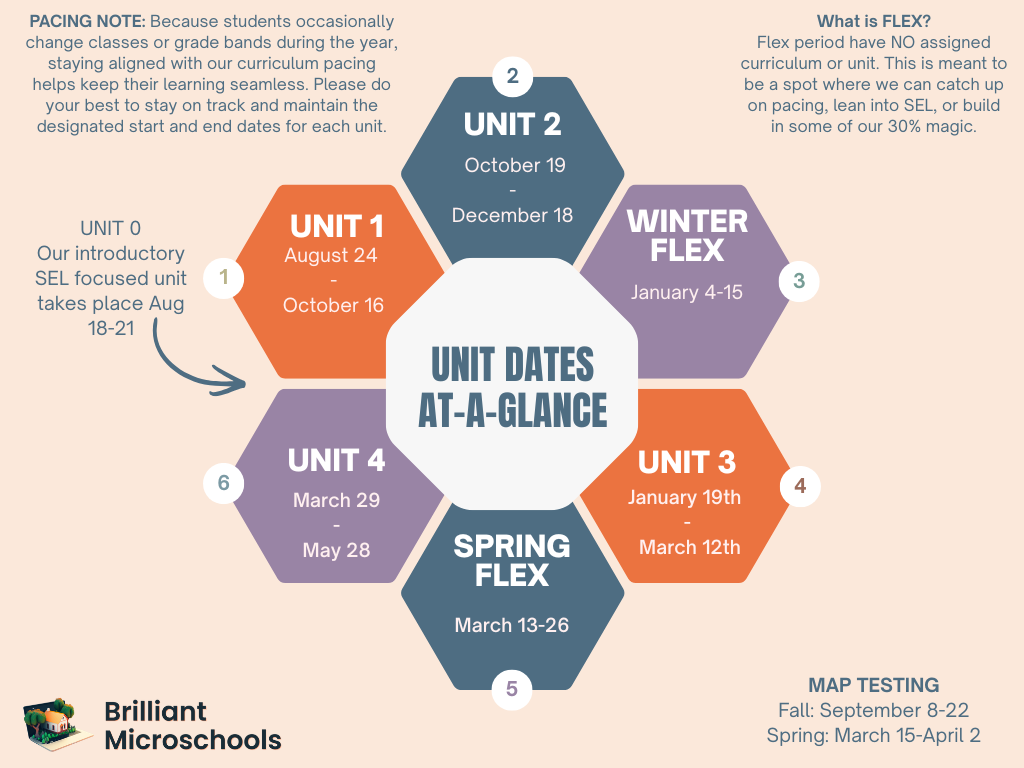
Units at a Glance (2026–27)
Start and end dates for each unit in the current school year. If your classroom is new, begin with Unit 0 before joining the current unit for the timeframe. Updated unit dates will be added here.
Pacing note: Because students occasionally change class or grade bands during the year, staying aligned with our curriculum pacing helps keep their learning seamless. Please do your best to stay on track and maintain designated dates.
Unit 0Aug 18–21
Introductory SEL focus unit
Unit 1Aug 24 – Oct 16
Unit 2Oct 19 – Dec 18
Winter FlexJan 4–15
No assigned curriculum; catch up on pacing, lean into SEL, or build 30% magic
Unit 3Jan 19 – Mar 12
Spring FlexMar 13–26
Unit 4Mar 29 – May 28
MAP testing
Fall MAP Testing: Sept 8–22
Spring MAP Testing: Mar 15 – Apr 2
Sample schedule — ESE program
Two reference options for exceptional student classrooms. Confirm the current timetable with your AP before using it.
Universal Design for Learning, differentiation, and Tier 1 supports help the whole class access rigorous work while giving individual students the support they need.
Give students ownership, meaningful choices, peer collaboration, and repeated chances to contribute. The resources below focus on making interaction intentional in a virtual room.
First decide what students should learn or do. Then choose a tool that supports that goal, whether you need to communicate with families, start class well, differentiate, or build math fluency.
An example of organizing classroom links visually. Adapt the idea only when it makes navigation clearer for students.
These external sites provide videos, games, lesson ideas, visual models, and intervention strategies. Check age fit and accessibility before assigning one to students.
Observe complete classes first, then study shorter clips to focus on one teacher move at a time.
1. Observe a full class
Watch these first
The two featured recordings are the best place to begin. They are not scripts to copy; use them to study how the teacher moves students through a complete learning experience.
While you watch
Notice pacing, transitions, teacher talk, who participates, and how the teacher checks for understanding. Write down one move you would borrow and one question you still have.
Grade band: Upper elementary. Observe pacing, transitions, participation, and checks for understanding.
Zoom Clip
Upper elementary full-class example
Observe pacing, transitions, participation, and how the teacher checks for understanding.
After the core path — Shadow a live class and use the electives Slack channel for role questions.
Teacher Assistants & Substitute Teachers
Classroom Support — Watch the two role videos before your first classroom-support assignment.
1:1 School
Role-specific 1:1 training, program expectations, session structure, and working references.
Who this is for
Teachers assigned to the 1:1 School or preparing to lead individual K–12 student sessions.
Learning outcome
Prepare a complete 1:1 session plan with a clear beginning, middle, ending, Toddle assignments, and reflection.
1. Understand the program
The 1:1 program gives K–12 students personalized support from a certified teacher. The program uses two live, 50-minute check-ins each week alongside independent work in BMS learning apps.
1:1 session expectations
The 1:1 program provides two live 50-minute check-ins each week. If a student is late, remind the family after 5 minutes and contact Parent Support in the 1:1 channel after 10 minutes.
Students work independently through BMS learning apps between live sessions.
General-education students may choose up to two electives.
Students may join clubs, community events, and field trips.
The program can support self-directed students and students who need more individualized help.
2. Set up each session
Prepare the beginning, middle, and end of a 1:1 session.
Google document · Sign in may be required
What to expect in your first 1:1 session
A practical guide for preparing for and leading the first meeting with a 1:1 student.
Complete the day-in-the-life, Toddle, and Brilow checks as prerequisites. Send the completed deck to the 1:1 Instructional Lead after you finish the Final Mastery Check.
4. Handle a late student and submit your session plan
When a student is late
Parent Support. If the student has not arrived after 5 minutes, send the family a reminder. If the student has not arrived after 10 minutes, contact Parent Support in the 1:1 channel so they can follow up with the family.
Submit this once
A completed copy of the Final Mastery Check deck for one sample student.
One sample student selected.
Beginning, middle, and ending plan for the session.
Toddle assignments and links checked and ready.
A short reflection on the choices in the plan.
Send it once to 1:1 Instructional Lead.
After submitting: The 1:1 team will respond with approval or revision notes. No additional submission is required unless they ask for a revision.
ese
Role-specific training for ESE classroom expectations, weekly planning, phonics support, and Performance Task grading with UDL.
Who this is for
Teachers assigned to an ESE classroom or responsible for ESE planning, phonics support, or Performance Task grading.
Learning outcome
Plan the first ESE week, use Phonics Room intentionally, and apply UDL when grading a Performance Task.
1. Classroom expectations
Understand the daily ESE classroom structure and expectations.
Start with the overview of Toddle, breakout rooms, Universal Design for Learning, and the daily practices that help ESE students grow successfully.
Loom video
ESE classroom expectations in practice
Begin here for the ESE classroom model, daily expectations, Toddle, breakout rooms, and Universal Design for Learning.
A completed first-week ESE planner that shows daily expectations, Phonics Room use, and the UDL approach to grading one Performance Task.
A complete first-week planner.
Daily classroom expectations and the planned Phonics Room use.
The UDL approach for grading one Performance Task.
Submit once in #bms-teacher_certification.
After submitting: The certification team will respond in Slack. No additional submission is required unless they ask for a revision.
Teacher Assistants & Substitute Teachers
Role-specific guidance for stepping into a class, supporting the lead teacher, and helping students finish the day well.
Before you start
Complete the common Microschool Teacher path through Mastery Check 5, then use these two role videos before your first classroom-support or substitute assignment.
Prepare for the role
These videos focus on the practical decisions that help a class run smoothly when you are substituting or supporting another teacher.
Confirm the class plan, student-support route, and lead teacher's expectations before the session begins.
Already Part of the Team?
Brilliant Learning System Playbook
Connect the shared teaching model, professional-learning systems, roles, expectations, and annual rhythm to everyday classroom practice.
Use this playbook to understand how Brilliant Microschools turns shared teaching beliefs into professional learning, classroom practice, feedback, and continuous improvement.
BLS vision
Every educator grows through a clear, connected system so every student experiences joyful, rigorous, responsive learning and develops the habits needed for lifelong success.
BLS framework
BLS framework
Shared aim
Student success and lifelong learning
Learning Rhythm
Planning and flow
Engagement routines
Joyful and purposeful learning
STEM
Brilow Routine
Connection routines
Habits of Success
Wellbeing
Self-regulation
Goal-setting and reflection
Executive function coaching
Pathways to Mastery
Targeted support and relearning
Student voice and choice
Data-informed instruction
Clear learning targets and success criteria
Foundation · Community
How it moves: Systems + People + Coaching
BLS systems
BLS systems
These systems work together. Open the one you need instead of treating them as separate programs.
Growth Circles
A consistent small group where educators learn, reflect, and solve practice problems together.
Work in a consistent group of 6–10 educators with a trained facilitator.
Use Targeted Support and Level-Up pathways to match the learning need.
Educator Innovation Workshops (EIWs)
Collaborative workshops for designing, testing, and sharing improvements to student learning.
Bring a real practice challenge.
Leave with an idea that can be tried in context.
MasterClasses
Focused learning experiences led by educators and specialists with useful expertise.
Study a specific practice.
Connect the learning to classroom implementation.
Power Ups
Short, timely learning sessions that respond to a current need or priority.
Use the session for an immediate practice need.
Apply the learning in current work.
Gradeband Meetings (GBMs)
Grade-band collaboration on students, instruction, curriculum, and shared priorities.
Bring relevant student and classroom context.
Leave with clear shared next steps.
MTSS
A shared process for identifying needs and coordinating increasingly targeted student support.
Start with evidence from the classroom.
Document, monitor, and adjust support with the appropriate team.
Observation Cycles
Non-punitive observation and feedback focused on learning, reflection, and stronger practice.
Agree on a useful focus.
Use specific evidence and a manageable next step.
Professional Growth Plans (PGPs)
Individual goals that connect educator development with student and school needs.
Set a meaningful, observable goal.
Review evidence and revise the plan over time.
Professional Learning Calendar
The current schedule that connects BLS learning, implementation, reflection, and celebration.
Use the live calendar as the source of truth for dates.
Prepare for milestones before each learning cycle.
Roles and responsibilities
Roles and responsibilities
Start with your role, then read the roles you work with most closely.
Teachers
Responsibility: Learn, implement, reflect on, and share practices that improve the student experience.
Success looks like: Students experience clear, engaging, supportive learning and teachers can explain the evidence behind their next step.
Assistant Principals
Responsibility: Coach teachers, notice implementation patterns, and remove barriers to strong practice.
Success looks like: Teachers receive useful feedback and timely support connected to classroom needs.
Deans
Responsibility: Connect student support, culture, and academic systems across teams.
Success looks like: Student needs are routed clearly and support remains coordinated rather than fragmented.
Principals
Responsibility: Set priorities, protect time for professional learning, and keep implementation coherent.
Success looks like: The school has a shared learning focus and teams have the conditions to act on it.
Growth Circle Facilitators
Responsibility: Create a trusting, focused learning space and guide the group through its pathway.
Success looks like: Educators participate honestly, leave with practical next steps, and learn from one another.
BLS Leads
Responsibility: Steward the system, develop facilitators, monitor coherence, and improve the learning experience.
Success looks like: BLS remains useful, connected, and responsive across schools and roles.
Curriculum Team
Responsibility: Connect curriculum, instructional resources, and professional learning to the BLS framework.
Success looks like: Educators can move from the framework to concrete, curriculum-aligned classroom practice.
Implementation expectations
Implementation expectations
In classrooms
Make the learning goal and success criteria clear.
Use routines that support participation, belonging, and productive challenge.
Respond to evidence and give students meaningful voice and choice.
Teachers
Participate actively in the current BLS learning pathway.
Try agreed practices and bring evidence back for reflection.
Ask for support early and share useful learning with colleagues.
Leaders
Protect time and psychological safety for educator learning.
Use observation and coaching to support a focused next step.
Connect priorities, feedback, and resources so expectations stay coherent.
Professional learning
Begin with a real educator or student need.
Include implementation, evidence, reflection, and adjustment.
Celebrate growth without turning every learning moment into evaluation.
Continuous growth cycle
Continuous growth cycle
Growth moves from focused practice, to purposeful action, to reflection and a clearer next step.
Student growth
1
Learn
Build shared understanding of a practice and why it matters.
2
Implement
Try the practice in your own context with a clear purpose.
3
Observe
Collect specific evidence from the classroom or professional work.
4
Reflect
Study what happened, including the student experience and outcome.
5
Adjust
Choose a focused change and try again.
6
Celebrate
Name growth, share useful learning, and recognize progress.
Resources and tools
These are the six source categories for the playbook. Owners still need to add the approved live destinations.
Teacher Evaluations
Look-fors, evidence forms, coaching protocols, and reflection tools.
Approved link pending
Professional Learning Library
Recordings, presentations, guides, and resources from professional learning sessions.
Approved link pending
MTSS Resources
The current process and tools for coordinating student support.
Approved link pending
2026–27 planning view
2026–27 planning view
Planning view — not the live calendar
Confirm dates and milestones with the current professional learning calendar before relying on this planning view.
Power Ups: Power Ups happen regularly throughout the year based on individual teacher needs and ongoing collaboration with their AP. Because the frequency and timing will vary by teacher, they are not included in this year-at-a-glance planning view.
Please Note: This is a tentative schedule and all dates, sessions, and professional learning opportunities are subject to change. The purpose of this overview is to provide teachers with a general picture of the professional learning, BLS support, reflection, and evaluation opportunities they can expect throughout the school year.
Frequently asked questions
What is BLS?
The Brilliant Learning System is the shared framework, people, and professional-learning systems that help educators improve practice and student learning over time.
Is BLS separate from the Teacher Handbook?
No. This playbook is part of the Teacher Handbook. The playbook explains the professional-learning system; the rest of the handbook holds the detailed teaching, operational, and role guidance used within it.
Who participates in Growth Circles?
Educators participate in a consistent group of 6–10 people with a trained facilitator. Confirm your assigned circle and pathway with your school leader.
How are observations used?
Observations support learning and reflection. They should use agreed evidence, helpful feedback, and a manageable next step—not surprise or punishment.
Where do official resources live?
Use the approved links in the Resources and tools directory once owners add them. Until then, ask your school leader or BLS Lead for the current source.
How often is this playbook updated?
Review it at least annually and whenever a BLS role, system, resource, or school-year rhythm changes.
Already Part of the Team?
Parent Handbook
Use the matching family-facing page when you need to align a teacher response with parent guidance.
Use these family-facing pages to stay aligned with what parents and students are told. Link to the smallest relevant page instead of asking a family to search the entire handbook.
Resource
Parent Handbook
Use the full handbook when you need to check the complete family welcome journey or school expectations.